When editing documents, writing articles, updating website content, or reviewing important information, you may need to identify what has changed between two versions of a text. Checking every line manually can take time, especially when both versions contain a large amount of information.
Learning how to Compare Two Texts Online makes this task easier. An online text comparison tool can examine two text inputs and highlight which lines have been added, removed, or left unchanged.
Whether you are a student, writer, content creator, developer, or professional, comparing text can help you review changes more efficiently and reduce the chances of overlooking important differences.
In this guide, you will learn how online text comparison works, how to use a text comparison tool, what added and removed lines mean, and how to compare text more effectively.
Table of Contents
ToggleWhat Does It Mean to Compare Two Texts?
Comparing two texts means examining their content to identify similarities and differences.
For example, imagine that you have an original document and an updated version. You want to know which sentences were added, which lines were removed, and which parts remained the same.
Instead of reading both versions repeatedly, you can use a text comparison tool to identify these changes.
A text comparison tool can help you:
Find newly added lines.
Identify removed lines.
Recognize unchanged lines.
Review updated document content.
Check changes between two versions of written material.
This process is also commonly called text comparison or text diff checking.
Why Should You Compare Two Texts Online?
Text comparison is useful in many everyday tasks. Here are some reasons why people use online text comparison tools.
1. Review Document Changes
When a document is updated several times, it can become difficult to remember every change. Comparing the original and revised versions helps you review the modifications.
2. Check Edited Articles and Blog Posts
Writers and website owners frequently update their articles. Comparing two versions can help identify new information, removed paragraphs, and unchanged sections.
3. Improve Proofreading
Before publishing a revised document, you can compare it with the previous version to check whether important content has been accidentally removed.
4. Review Content Submitted by Others
Editors, teachers, and team members may receive multiple versions of the same document. Text comparison makes it easier to identify changes between submissions.
5. Compare Text During Development
Developers and technical users may need to compare configuration text, code snippets, or other plain-text content. A line-based comparison can help reveal changes.
How to Compare Two Texts Online Using a Free Tool
You do not need to install special software to compare two pieces of text. You can use the free Text Compare Tool on Arzoo Reviews.
Follow these simple steps:
Step 1: Open the Text Compare Tool
Visit the free online Text Compare Tool page.
Step 2: Enter the Original Text
Paste your original text into the first text input area. This is the version you want to use as your reference.
Step 3: Enter the Updated Text
Paste the second or revised version into the other text input area.
Step 4: Select Comparison Options
Choose the available settings according to your requirements:
Ignore Case: Use this option when uppercase and lowercase differences should not affect the comparison.
Ignore Extra Whitespace: Use this option when additional spaces should be ignored during comparison.
These settings help you focus on the changes that matter.
Step 5: Compare the Text
Run the comparison to see the differences between the two inputs.
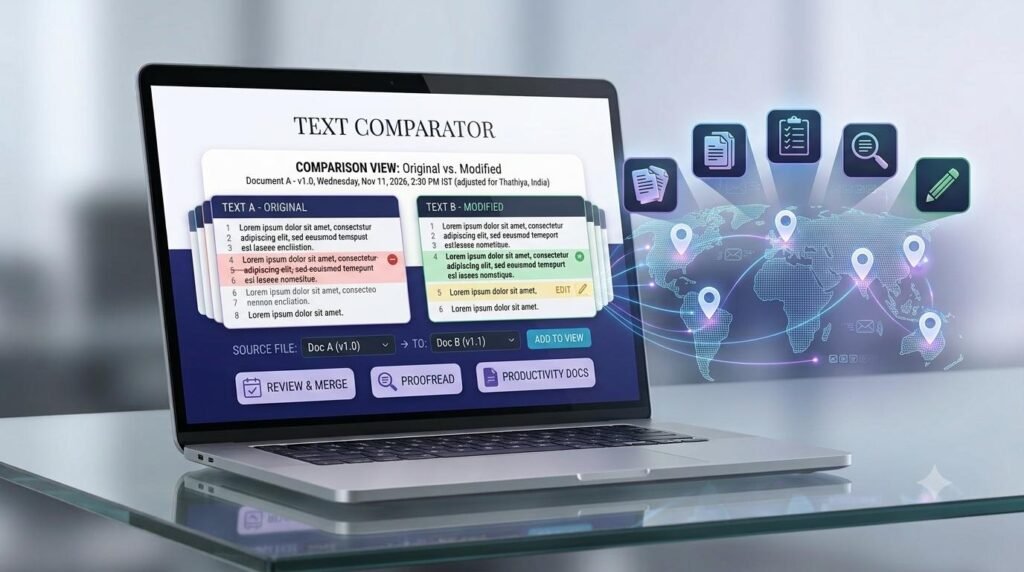
The tool displays line-based results, helping you identify added, removed, and unchanged lines.
Step 6: Review the Results
Carefully examine the highlighted results. Check whether the changes are intentional and whether any important information has been removed.
Step 7: Copy the Comparison Report
Use the copy report option if you want to save or share the comparison results.
Understanding Added, Removed, and Unchanged Lines
One of the most useful features of a text comparison tool is the ability to classify lines according to their differences.
Here is what each result means.
1. Added Lines
Added lines are the lines that appear in the updated text but were not present in the original version.
For example:
Original Text:
Online tools save time.
They simplify everyday tasks.
Updated Text:
Online tools save time.
They simplify everyday tasks.
They improve productivity.
The line “They improve productivity.” is added.
2. Removed Lines
Removed lines appear in the original text but are missing from the updated version.
For example:
Original Text:
Online tools save time.
They simplify everyday tasks.
They improve productivity.
Updated Text:
Online tools save time.
They simplify everyday tasks.
The line “They improve productivity.” has been removed.
3. Unchanged Lines
Unchanged lines are present in both versions and have not been identified as different by the comparison process.
For example:
Original Text:
Text comparison is useful.
It helps review changes.
Updated Text:
Text comparison is useful.
It helps review changes.
Both lines remain unchanged.
Important Features of an Online Text Comparison Tool
A useful text comparison tool should make it easier to review two versions of text.
Here are some features available in the Arzoo Reviews Text Compare Tool.
Compare Two Text Inputs
Enter the original and updated text separately to examine their differences.
Identify Added Lines
Find lines that appear in the second version but not in the first.
Identify Removed Lines
Recognize lines present in the original text but missing from the updated version.
Show Unchanged Lines
Identify content that remains the same across both text inputs.
Ignore Case
This option helps ignore uppercase and lowercase differences when comparing text.
Ignore Extra Whitespace
This setting helps prevent additional whitespace from becoming a distraction during comparison.
Copy Comparison Report
Copy the comparison results for reviewing, documenting, or sharing changes.
What Is the Difference Between Text Comparison and Plagiarism Checking?
Text comparison and plagiarism checking are related to examining written content, but they serve different purposes.
Text Comparison:
Compares two text inputs supplied by the user.
Identifies added, removed, and unchanged lines.
Helps review document revisions.
Works with the two versions you provide.
Plagiarism Checking:
Examines content for possible similarities with other sources.
May compare text against websites, databases, or other documents.
Helps identify potentially copied content.
Usually requires a dedicated plagiarism detection service.
A text comparison tool should not be treated as a plagiarism checker. It is designed to identify differences between two supplied text inputs.
Common Mistakes to Avoid When Comparing Text
Even when using a comparison tool, certain mistakes can make results difficult to understand.
1. Comparing the Wrong Versions
Always check that you have pasted the correct original and updated text. Mixing up versions can produce misleading results.
2. Forgetting to Check Comparison Settings
If you want to detect capitalization changes, do not enable the Ignore Case option. Similarly, review whitespace settings according to your needs.
3. Ignoring Removed Lines
New content often receives more attention than deleted content. However, removed lines may contain important information that should be restored.
4. Assuming Every Difference Is an Error
Some changes are intentional. Review the context before deciding whether a difference needs correction.
5. Relying Only on Automated Results
An automated comparison identifies textual differences, but it cannot always determine whether a change improves meaning, grammar, or accuracy. Human review is still important.
Who Can Benefit from a Text Comparison Tool?
An online text comparison tool can be useful for many types of users.
Students: Compare assignment drafts and revised notes.
Writers: Review changes made during editing.
Bloggers: Check updated articles before publishing.
Editors: Review content revisions and corrections.
Developers: Compare plain-text code snippets and configuration files.
Business Professionals: Review updated reports, proposals, and written documents.
Website Owners: Identify changes between older and newer website content.
Anyone who regularly edits or reviews written material can benefit from text comparison.
Important Limitations of Line-Based Text Comparison
Before using a text comparison tool, it is helpful to understand what it can and cannot do.
The Arzoo Reviews Text Compare Tool focuses on line-based comparison. It identifies added, removed, and unchanged lines.
It is not designed for every type of document analysis.
For example:
It does not provide character-by-character difference highlighting.
It does not provide word-level difference highlighting.
It is intended for comparing two text inputs rather than directly comparing complex Word or PDF documents.
It does not determine whether a change is factually correct or grammatically better.
Understanding these limitations helps you choose the right tool for your task.
Frequently Asked Questions (FAQs)
Open an online Text Compare Tool, paste the original text into one input area, paste the updated text into the other, and run the comparison. Review the added, removed, and unchanged lines.
Yes. You can use the free Text Compare Tool on Arzoo Reviews to compare two text inputs and identify their differences.
Added lines are present in the updated text but not in the original. Removed lines are present in the original but missing from the updated version.
Ignore Case means that uppercase and lowercase differences are not treated as changes during comparison. For example, “HELLO” and “hello” can be treated as equivalent under this setting.
This option helps ignore additional whitespace during comparison, making it easier to focus on meaningful text changes rather than extra spaces.
You can compare the text content by copying it from both documents and pasting it into the two input areas. The tool is designed for text inputs rather than direct comparison of complex document files.
No. Text comparison identifies differences between two supplied texts. Plagiarism checking looks for similarities with other sources and requires a different type of service.
Yes. The Arzoo Reviews Text Compare Tool provides a copy report option so you can copy the comparison results for later use.
Conclusion
Comparing two versions of written content does not have to be a time-consuming task. An online text comparison tool can help you identify added, removed, and unchanged lines without manually reviewing every section.
Learning how to Compare Two Texts Online is useful for students, writers, editors, developers, bloggers, and professionals who regularly work with written material.
For better results, always provide the correct text versions, select suitable comparison settings, and review the differences carefully.
Ready to find the differences between two text inputs? Try the free Text Compare Tool on Arzoo Reviews and review your text changes more easily.
You can also explore our Online Developer Tools Guide to discover more useful tools for everyday digital tasks.
Explore More Developer & Productivity Guides
Discover practical guides to make everyday digital tasks easier. Learn how to format JSON data, create strong passwords, and convert time between countries using simple online tools.
Online Developer Tools Guide
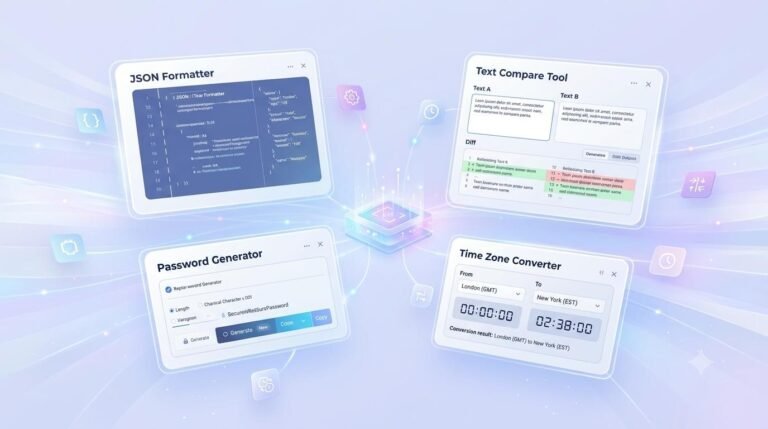
Explore four useful online tools for JSON formatting, password generation, time conversion, and text comparison.
How to Format JSON Online
Learn how to format, beautify, validate, and minify JSON data with a simple online tool.
How to Create Strong Passwords Online
Learn how to generate strong passwords, choose secure settings, and protect your online accounts.
How to Convert Time Between Countries
Learn how to convert international time zones, understand time differences, and schedule meetings across different countries.
Explore More Digital Resources at DigiMarket
Discover useful digital products, business resources, and productivity solutions at DigiMarket – The Marketplace for Digital Treasures.
Explore practical resources that can support your digital projects, online work, and learning journey.
Learn More with Prernaa
Want to improve your digital skills and learn practical ways to work smarter? Explore Prernaa – Inspiring Learning for useful learning resources, practical guides, and educational content.
Discover helpful information that can support your personal learning and digital growth.